
AI outfit change video: three looks, one fixed camera, one photo
One photo in, a 15-second vertical clip out: you, one sunlit room, three outfit hard cuts. Ready for TikTok and Reels.
An AI outfit change video on CastTake is one fixed-camera clip in a sunlit living room where the same person hard-cuts from one outfit to the next, three times, the way an outfit-of-the-day post is filmed on a phone tripod. Add a single photo and the model builds the clip around it: your own face, or an AI model holding your product.
A clear, front-facing photo. The template keeps your face, hair and skin tone; outfits and the set come from the template.
No nudity, minors or other people's photos without consent — uploads may be checked by automated tools.
About 5 seconds of you in this format.
This video: 120 credits
No subscription needed · Credits never expire · Usually ready in 15-23 minutes · Failed renders are refunded
Sunlit Try-On, 3 Looks
Choreography locked · Facial reference enabled
One limit up front: the three outfits are part of the format, and the tool does not dress the model in your own garment. Where the free 5-second preview is offered you can check a result before paying, and your first small or medium credit pack is 15% off.
- Input: one PNG, JPG or WebP. A front portrait of you, or a photo of a product with no people in it.
- Output: a vertical 9:16 clip, 15 seconds with your face or 10 seconds with a product.
- Price: 120 or 650 credits a clip; your first small or medium credit pack is 15% off.
Two ways to use the outfit change format
Both modes make the same clip: same room, same three outfit hard cuts. What differs is who is on screen and what you upload.
| Detail | You in three outfits | An AI model with my product |
|---|---|---|
| Your photo | A clear, front-facing portrait of you | A photo of the item, no people in it |
| Who is on screen | You: the model keeps your face, hair and skin tone | A fictional AI presenter, described in words |
| The three outfits | Set by the format, not chosen by you | The same three, and the presenter shows your item |
| Length and look | 15 s, MiniMax H3, 720p vertical | 10 s, Seedance 2.5, 720p vertical |
| Credits per clip | 120 | 650 |
| Reach for it when | You want an outfit change post starring you | You sell something and want a styled clip that shows it |
Priced on the Creator plan, $29.90 a month for 800 credits; credit packs cost more per credit. Every rate is on the pricing page.
What an AI outfit change video does, and what it does not
The format is copied from a viral post: a person stands in a bright living room, the camera does not move, and the clothes change with a hard cut, no fade and no morph. The model draws the whole clip; you choose who is in it and, in product mode, what they hold.
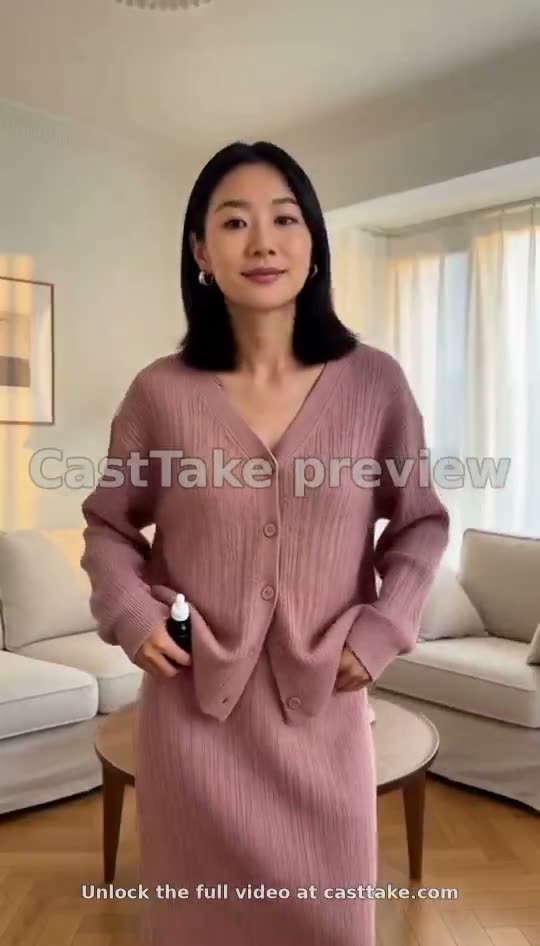
It does not dress the model in your own garment. The three outfits are fixed by the format, and product mode shows your item as something the presenter holds or shows, not as something they wear. Our own previews show a serum bottle in hand while the outfits change around it. If you need one specific garment worn on a body, this is the wrong tool.
What it does well is the look of a phone-tripod outfit post: the warm daylight, the timing of the cuts, the small turns and hand movements between them. Those details are what make three outfits in one video read as a real outfit-of-the-day clip.
The outfit transition video, look by look
The clip runs in three roughly equal beats. Each look is visible in the two previews further down.
Look 1: sage-green knit dress
The person walks into frame, stops in the middle of the room, smooths the skirt and turns from side to side before smiling at the camera.
Look 2: dusty-pink knit set
A hard cut swaps the dress for a matching cardigan and skirt. Hands go in the pockets, weight shifts, a glance down and back up.
Look 3: cream linen shirt dress
Another hard cut. The sleeves are shown, the person turns away from the camera and back, hands on hips, and the clip freezes on a satisfied smile.
How to make one, from photo to clip
- 01
Choose a mode
The switch above the upload picks between your own face and a product photo. It also fixes the length and the credit cost, which the button shows before you press it.
- 02
Add one photo
Product mode checks the photo for a human face and refuses it if there is one, so a photo of someone wearing the item will not go through. Your own portrait needs a ticked box saying it is you, or an adult who agreed.
- 03
Run the free 5-second preview
Where the preview is offered you get a watermarked 5-second cut, usually in about four minutes, without creating an account first. It is the cheapest way to find out whether your photo works.
- 04
Unlock the full video
The full video uses 120 credits. The render is queued and lands in your dashboard when it finishes, so you can close the tab.
Which photo gives the cleanest result
Most bad results start with the photo, not the model. These are the differences we would check first.
✓ Works
Your face, front on
Even light, nothing over the eyes, one person in the frame. The model reuses the face, so a sharp one carries through all three looks.
A product alone on plain ground
A bottle, a bag or a box on a table or a wall, whole item in frame, with the front facing the camera.
A simple, high-contrast item
A solid-colour object with a clear silhouette survives the trip better than a busy all-over print.
✕ Struggles
A product held by a real person
Product mode refuses any photo with a human face in it. Photograph the item on its own instead.
Collages and lookbook grids
Several items in one frame leave the model guessing which one to carry.
Heavy filters or cropped faces
A beauty filter is copied faithfully, and a face cut off at the forehead gives the model less to hold on to.
OOTD video maker: who posts three outfits in one video
A product clip uses 650 credits and one with your own face 120, so the practical question is what you would post with them.
Outfit-of-the-day posts
A short clip of you changing looks is the standard shape of an OOTD post. The free preview shows whether your portrait holds up before you spend anything.
Teasers for a product
A serum, a bag or an accessory shown by an AI presenter in a bright room. Ten different product photos come to roughly $242.94 for ten clips.
Not a fitting room
A fictional presenter has no measurements and does not wear your garment. For fit and drape, real photos on real bodies still answer better.
What came out: two real previews
Both clips below are 5-second free previews rendered on CastTake with the watermark still on. They are not the full 10- or 15-second video, and they are not edited.
The original trend, next to ours
The format was made by @abxxai. Their post is embedded through X’s own player, so it plays from X and disappears if the author deletes it. Ours is on the left; theirs is a different video with a different person, and not something we made.
Ours: a CastTake preview
The original trend, by @abxxai
Not made by CastTake. Credit for the format goes to @abxxai; the post plays from X when you press the button.
Open @abxxai’s original post on XWhere the two previews came from
Details of the two clips shown above.
| Item | Detail |
|---|---|
| Rendered | 29 September 2026 |
| Model and mode | MiniMax H3, Sunlit Try-On 3 Looks template, product mode with a serum bottle photo |
| Inputs | An AI-generated presenter in each clip, a different one in each, no real people |
| Length shown | 4 seconds, the watermarked free-preview cut of the opening; the full template runs 15 seconds |
| Editing | None |
We have not published a full-length render of this template on this page, so judge the look order from the previews and not the ending.
Questions about AI outfit change videos
Can I choose the three outfits in my AI outfit change video?
No. The three outfits are part of the format, in the same way the sunlit living room and the fixed camera are. They are a sage-green knit dress, a dusty-pink knit cardigan with a matching skirt, and a cream linen shirt dress. What you choose is who is in the clip, either your own face or an AI presenter, and in product mode what that presenter holds. If you need specific clothes from your own wardrobe or your shop, this format cannot do it, and it is better to know that before you upload anything or spend any credits on it.
Does the model wear my clothes if I upload a garment photo?
No, and we would rather say so plainly. Product mode takes a photo of an item and an AI presenter shows it, usually holding it or carrying it through the clip, while the three fixed outfits change around them. The garment in your photo is not put on the model as one of the looks. Our own previews use a serum bottle for the same reason: that is what the mode does well. A photo with a human face in it is also refused in product mode, so a garment worn by a person will not go through.
What is an outfit transition video?
It is a short clip where the same person appears in several outfits, joined by a transition. This format uses the simplest one, a hard cut, with the camera locked off on a phone tripod in a bright room, so the change of clothes is the only thing that moves between shots. That plain look is what makes an outfit-of-the-day video feel handmade rather than edited. Ours runs three looks in about fifteen seconds with your face, or ten seconds with a product, and it is vertical 9:16 so it fits Reels, Shorts and TikTok without cropping.
How much does it cost to make three outfits in one video?
A clip with your own face uses 120 credits, a product clip uses 650, and your first small or medium credit pack is 15% off. Bigger packs make a credit cheaper. Credit packs are one payment each, with no subscription and nothing that renews. The price is shown on the generate button before you press it. Every rate sits on the pricing page, so you can compare it with what a shoot or another tool would cost you. No subscription or renewal is needed.
Is there a free way to try the ootd video maker?
Where it is offered, you can run a free 5-second preview with the CastTake watermark before you pay, and you do not need to create an account first. It is offered in a limited set of countries and limited to one per device, so you may see the paid option first instead. The preview is a short cut of the same format, usually ready in about four minutes, and it is the fastest way to see whether your portrait or your product photo works in this room before you commit to a full render.
Can I use the clip for my brand’s posts or ads?
Yes, for a clip you paid to render, with your own face or a fictional presenter. Ad platforms and social networks have their own rules about labelling AI-generated video, so check those before you run it as an ad. Do not upload a photo of another person unless they have agreed, because the tool asks you to confirm the face is yours or an adult who agreed. Remember what the clip shows: a styled outfit change with your product in hand, not a demonstration of how a garment fits or looks on a customer.
Ready to try it?
Add a photo in the tool at the top of this page. Nothing is charged until you press a paid button, and the price is on the button.
Back to the tool